Working with PIRA Team
On this page
PIRA Series
You ask PIRA to investigate a problem. While it works, you notice something else that needs doing. Send another message. You do not need to wait for the first task to finish or remind PIRA to continue it.
PIRA becomes more like a collaborator you can keep talking to. You no longer have to hold back the next request until the current work finishes. Share it when it comes to mind: an independent new task joins the work already underway instead of replacing it.
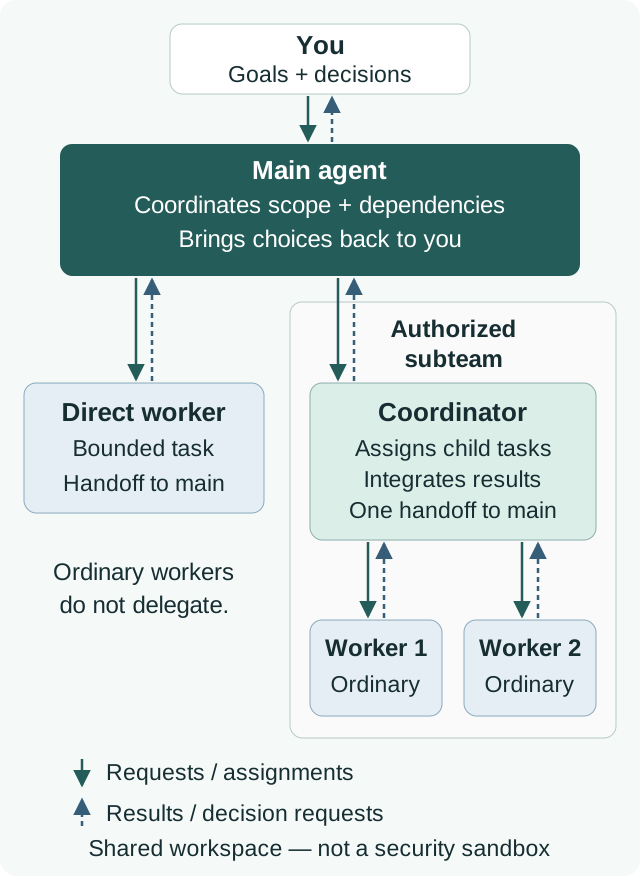
With PIRA Team, the main agent can assign substantial technical tasks to workers while you keep discussing goals, adding work, and making decisions in the same conversation.
What you need to know
There are three useful concepts:
- The main agent is the PIRA agent you talk to. It understands your goals, coordinates work, and brings results and important decisions back to you.
- A worker is another Codex agent assigned a bounded technical task, such as reviewing a module or implementing an independent component. It has its own conversation for investigation and testing.
- An assignment tells a worker what to do, what it may change, and what counts as completion. The main agent prepares it from your request, supplies relevant context, and reads the worker’s result.
You do not need to launch workers or manage their IDs. A single prompt can also contain several independent jobs. For example: “Review the loader, add CSV export, and check the installation instructions.” PIRA decides whether to delegate suitable jobs in parallel or work through them sequentially itself. You describe the outcomes; PIRA chooses the execution plan based on task size, independence, and coordination cost.
Workers use the same project workspace. PIRA separates their ownership and coordinates dependencies so that they do not independently change the same component. Important decisions about architecture, scope, dependencies, or public behavior come back to you.
Team organization
1. Protect your attention by talking with a single agent. Working on several projects through separate agent sessions makes you the coordinator across them. You have to switch contexts, read each session’s updates, remember unfinished work, and keep priorities aligned. Team brings that coordination into one conversation. You can move between projects and add requests as they arise, while the main agent tracks the work across them and handles the internal details. It brings back concise findings and decisions that need your judgment, reducing how much project state you have to carry yourself.
2. Use each worker’s capability without nested delegation. A capable agent can investigate a problem, carry out a substantial assignment, and check its result. Giving it ownership of that whole task lets it retain the context and reason through the work directly. Splitting small steps among more agents adds handoffs and coordination. Ordinary workers therefore cannot launch other workers: each is expected to finish its own assignment.
3. Use optional subteams for exceptionally heavy tasks. Some assignments exceed what one agent can reasonably manage, such as taking responsibility for an independent software project. For these cases, the main agent can explicitly authorize a coordinator to organize a subteam. The coordinator divides the project into substantial assignments, integrates the workers’ results, and reports back to the main agent. Child workers cannot delegate further. This provides extra capacity for project-scale work while preserving your single point of contact.
Add work as it comes to mind
Suppose you maintain a research data tool. You ask PIRA to review and repair the dataset loader. Before it finishes, you ask for CSV export too.
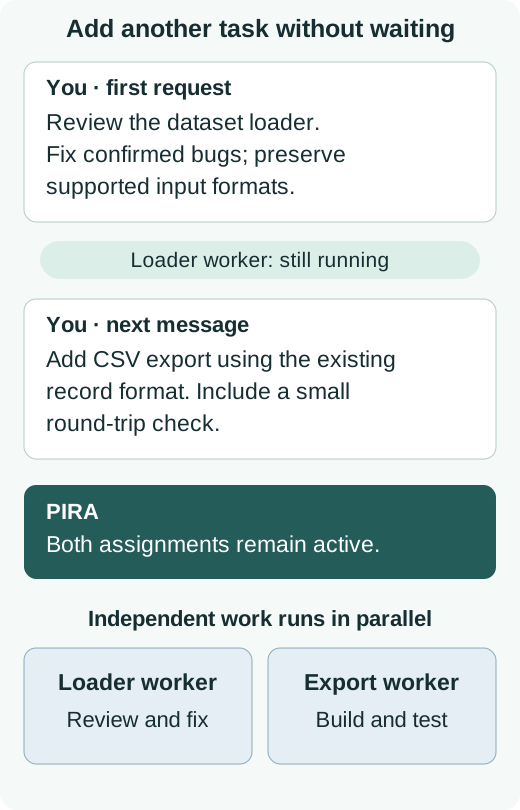
“Meanwhile” and “continue the earlier task” are optional. Independent requests are additive by default. You can keep assigning tasks as they arise; available resources and dependencies determine which can run at the same time.
If both assignments require a change to the shared record format, PIRA should ask about that decision and coordinate the dependent work. Other independent work can continue while you answer.
You can also change priorities or stop an assignment here; stopping work does not undo changes already made.
Choose the default or economical configuration
Keep the default for demanding or open-ended work. Choose the economical configuration for easy, well-defined tasks when cost matters most.
- Default configuration: no adjustment is needed. With GPT-6.1 Sol at high reasoning effort or GPT-6 Astra as your main agent, PIRA uses GPT-6.1 Sol workers at high effort. This is the stronger choice for broad reviews, unfamiliar code, and discovering what needs attention.
- Economical configuration: use GPT-6.1 Sol at high effort as your main agent, with GPT-6 Luna workers at max effort. This suits clearly specified fixes, straightforward components, and inexpensive prototypes.
In our evaluations, the default configuration with GPT-6 Astra at medium effort delivered stronger or comparable performance at about 52% lower average cost than GPT-6 Astra working alone.
Across the three tasks we evaluated, the economical configuration cost about 90% less on average than GPT-6 Astra working alone. Results were broadly comparable, though the economical workers missed some issues and left some behavior incomplete. Choose it when that quality trade-off is acceptable; keep the default when coverage matters more.
Try the economical option for one task
Select GPT-6.1 Sol at high effort as your main agent, then ask:
Use GPT-6 Luna at max reasoning effort for workers on this task. Keep my saved defaults unchanged.
The main agent handles the worker settings. You do not need to learn the launcher commands.
Save it as your usual worker setting
Tell PIRA:
For future Team launches with GPT-6.1 Sol as the main agent, set the default worker to GPT-6 Luna at max reasoning effort.
This saves a default across sessions using the same Team store. It applies to that main model; other main-model settings stay unchanged. A per-task choice takes precedence, and existing runs keep their selected models unless explicitly changed.
To go back, ask:
Restore the shipped default worker configuration for GPT-6.1 Sol.
Optional: set or reset the default yourself
# Save the economical worker default for a GPT-6.1 Sol main agent.
pira_team config set --main gpt-6.1-sol --model gpt-6-luna --effort max

# Inspect saved defaults.
pira_team config show

# Restore the shipped default for this main model.
pira_team config reset --main gpt-6.1-sol
What you get back
The main agent reads each worker’s report and gives you the key results: what changed, what was checked, and what still needs your input. Detailed logs and reports remain available through Team without cluttering the project. Important recorded decisions are shared between main and workers within the same workspace and decision store.
This also keeps the main conversation lighter. Team saved about 64% of main-agent context on average across our three tasks and three Team configurations, compared with the same main model working alone. The default configurations saved 64% with GPT-6.1 Sol as the main agent and 66% with GPT-6 Astra; the economical configuration saved 62%. These are equally weighted averages of each task’s percentage reduction in final used context, rather than cumulative input tokens. Less context consumed per task leaves room for more work before compaction, when a long conversation must be compressed. The PIRA README contains the full quality comparisons, configuration details, and cost accounting.
In our day-to-day use, we have not observed assigned tasks being forgotten during parallel work. We rely on continuation rules and retained results rather than a dedicated to-do-list mechanism. This is an observation, not a guarantee.
Get started
Update PIRA using the README instructions, then start a fresh session. The normal setup includes Team. Keep the defaults, describe a substantial task, and send your next independent request whenever it comes to mind.
You keep one conversation and the important decisions. PIRA manages the assignments.
You may want to know
Do I need to install or operate Codex CLI myself?
Team launches its workers through Codex CLI, the command-line version of Codex. You can keep talking to your main agent in your usual interface. Normal PIRA setup checks an existing CLI and, if none is available, downloads the latest stable official package automatically. If an existing CLI is incompatible, setup reports the problem instead of silently replacing it.
Why might setup ask me to sign in again?
Setup first checks for a compatible saved Codex login and reuses it when available. The current Team setup requires a file-backed login, normally stored in ~/.codex/auth.json, or an explicitly configured CODEX_API_KEY. A login held only in your operating system’s credential store is insufficient for this setup, so being signed in elsewhere does not always avoid another CLI sign-in. Codex supports both file and operating-system credential storage; see its authentication guide.
When sign-in is needed, setup uses the official browser flow in an interactive terminal, or displays a device-login link and code when run through an agent. Follow that prompt yourself. Device login must be enabled in your account or workspace settings. If your agent does not show the prompt, ask it to provide the setup command to run directly in a terminal. Setup waits up to five minutes for login and confirms that the saved login is recognized before proceeding.
Treat auth.json like a password: never paste it into a conversation or commit it. Setup leaves your global credential-storage setting unchanged and respects administrator restrictions. Its login check confirms that Codex recognizes the credentials; access to a particular worker model is checked when that model is used.