Everything Everywhere with One PIRA
On this page
PIRA Series
AI makes individual research tasks easier and encourages us to pursue more projects at once. The difficulty extends beyond the extra work: constantly switching between independent workloads overloads our attention. Reading and processing all that material ourselves becomes exhausting, bringing fatigue and burnout sooner.
Working with a different AI agent for each project creates a second challenge. Progress is scattered across conversations, leaving you to collect updates, reconstruct context, and decide what each agent should do next. While you are occupied elsewhere, agents wait for your next prompt. Their progress becomes limited by how often you can return to each session.
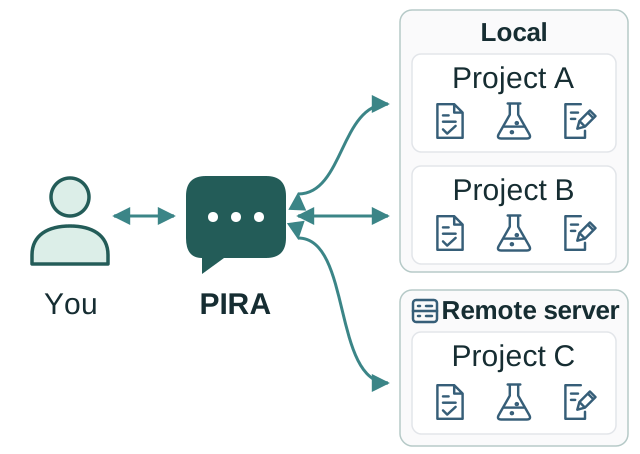
PIRA solves these by giving you a single communicator across all your science and life. Discuss your ideas, assign work, and make decisions, all with the communicator only. PIRA manages your workloads, tracks progress, and brings the results back to you, so you can focus on the research rather than managing a growing collection of sessions.
What you can do
Let PIRA manage all work for you. Ask it to check a paper’s assumptions, set up an experiment, or investigate a surprising result. When the findings are ready, ask it to turn them into a figure or a manuscript paragraph. You can follow the work from the initial question to the final presentation through the same communicator.
Keep talking to PIRA while it works. Add a task from another project, clarify a request, or change priorities while earlier work continues. PIRA shares progress in your conversation. You can also ask for a status report across all your work whenever you want to catch up.
Work across your computer and remote machines. Ask PIRA to set up on your server and configure remote access over SSH. You can then assign remote work and receive its results in the same conversation.
Pick up where you left off after an interruption. If your machine loses its network connection, reconnect and ask PIRA to check the status of your work and resume. Remote workers can keep progressing independently while you are disconnected.
Customize your communicator. Tell PIRA about your background and interests, how you prefer explanations, and which actions it may take on your behalf.
How it works
A communicator coordinates a team of workers. Your communicator handles planning and follow-up, delegates substantial independent tasks to workers that run in parallel, and handles small tasks directly when that is quicker. Workers can run locally or on a server with PIRA installed.
Persistent memory connects your conversations and projects. Your dedicated workspace holds your preferences, unfinished work, and project locations. Detailed notes stay with each project. PIRA uses these records to recover the relevant context when you return or a long conversation is condensed. Your profile and preferences are stored locally. Relevant details are sent to your model provider for inference; PIRA does not collect this information.
Remote execution is independent of the connection. Remote workers continue the parts of their assignments that can proceed independently and save their results. When the connection returns, your communicator collects those results and uses saved progress to continue unfinished tasks.
Get started
Standard PIRA setup also creates your communication workspace at ~/pira if it is missing and leaves an existing directory unchanged. Open a new session there and use it across all your projects. Installation and update instructions are available in the README.
- Open your communicator’s workspace in your preferred interface. In an IDE such as VS Code, open that directory and use the Codex extension or CLI. In the ChatGPT desktop app, add it as a local project and make it the primary folder, then start a conversation there. Starting in this directory lets PIRA load your communicator’s instructions and memory.
- Tell PIRA what you are working on. Describe recent developments and current priorities, and help it locate the directories for your active projects.
- Optionally, specify the resources it can use. These could include a Conda environment, an SSH server, or particular GPUs. Preauthorize the actions you allow, such as fully managing a designated Conda environment, including removing and recreating it.
Tip: Make a deliberate effort to talk only to your PIRA communicator. When habit tempts you to open another session, bring the task to PIRA instead, even while earlier work is running. As it takes on more of your projects, you will see how much effort it saves you in keeping track of everything.
PIRA gives you absolute file paths so you can open the files it discusses directly. In VS Code’s terminal, use Cmd+click on macOS or Ctrl+click on Windows and Linux to open a file link.
Already using PIRA? After updating, start a new session in your communicator’s workspace. Your project-specific memory remains in each project’s workbook. Point PIRA to those projects and ask it to pick up from their records.